Terms of ServiceContact UsReport a Bug

© 2025 MIXTAPE. All rights reserved.

Comprehensive Guide: Monetize Your AI Music

In this guide, we will cover... The Three Levels of Funnel How to understand the Spotify algos Why you shouldn’t use playlisting, and what to do instead Exactly what I did to reach 150k monthly streams. Step-by-step.

In this guide, we will cover:

  • The Three Levels of Funnel

  • How to understand the Spotify algos

  • Why you shouldn’t use playlisting, and what to do instead

  • Exactly what I did to reach 150k monthly streams. Step-by-step.

Visualizing Your Listeners through the Three Step Funnel

With so many pieces in place, we have arrived at the very critical junction of piecing the puzzle together.

Let's talk about the three step funnel.

Above is a model of how we want the journey of our future listeners to look. I.e. how we will lead them to engage with our content.

We want to think of the potential listeners to our AI music as a stream of water. We want to catch as much as possible of this water up top, and funnel it downstream. 

Top Funnel: Reach

Both social and ads are powerful options to catch listeners; I especially recommend some ad spend to get things in motion, as it helps your artist’s optics a lot early on. Keep reading for an how to advertise, step-by-step.

Middle Funnel: Streams

The middle funnel represents the streaming services, and your ability to use their built-in features to your advantage.  How to optimize your curation, and ultimately how to optimize for Spotify’s algorithms. This part of the funnel is monetizable.

Bottom Funnel: Fans

The bottom of the funnel represents the opportunity to engage your listeners in a deeper fan experience. This can mean several things, such as running a fan page for unreleased demos, a patreon for posting content, or a merch shop to further monetize.

Top Funnel: Reach

Organic Social Basics

First, let's go over the organic side of things. How to start running your artist's socials. Note that social promotion is an enormous topic, so I’ll go over the basics.

In summary: I’ve been running Instagram and TikTok for my artists, with the latter seeing more success, with about 1k views per post. The growth at first might be modest, but hang in there, over time it makes a difference!

Step 1: Make a content plan

Get an idea of the content you’d think other people would find interesting, which also helps build your artist’s story.

Tip: it helps to come up with a format: a kind of content you can re-use with some amount of variation. This makes sure you'll always at least have some idea of what to post, every day. Don’t be afraid of testing your ideas!

As an example, I made slideshow videos of "90s starter kits" with images of silly products from the 90s, accompanied by my artist's songs. This was by using all free images from the internet.

However, if you want to make more artful content, I really recommend Midjourney's video feature. I've used it to create 90s styled VHS montages of, for example, huge robots roaming around cities, as well as many other subjects. People seem to really like this.

Step 2: Warm up the account

When the account is new, we want to let the algorithms know that this account is not creating spam. Therefore it is good to warm your account. This means slowly ramping up posting, starting once a day, and then increasing frequency to your desired level. I’d say 1-3 posts a day.

For Instagram, it also means slowly (1-3 times a day) uploading a grid of posts. This is a great opportunity to build on your Artist’s visual story. If you’ve already prepared images in the previous guide, great! If not, use your preferred image generation tool to generate the posts.

Step 3: Engage

Engage with those who comment or like by following them if you want to get some early re-follows. Make sure to use your music in your posts, and let people know you’ve made the music, and how much their support means. Give people a reason to follow you by being kind or relatable. More about this later.

Remember, you already have some great music, so if you ever feel lost on what new content to create, fall back on that. Make something that accompanies the core of what you already have. Your music should be the common denominator of all your content.

Which brings us to the next step: Once someone listens to your song on socials and likes it, you need somewhere to send them. 

Add a link to your playlist or artist page in your Socials bio. Use Linktree if you want to add links to several streaming services or your fan page.

Meta Ads

With all methods of promoting my music, organic or paid, Meta Ads have yielded the fastest, most reliable results. I consider the Meta Ad strategy to be at the heart of my AI artist’s (modest) success.

Before we get into exactly how I created ads to get 150k+ streams/month, there is some basic setup to do:

First, use your personal Facebook account to create a Meta Business Account (the top-level hub required for ads).

Inside your Meta Business Account, you will want to:

  1. Create a Facebook Business Page (where your ad will run from)

  2. Create a Meta Ad Account

  3. Connect with your artist’s Instagram account (to run Instagram ads)

Overview

If you have issues setting your Ad account up, don’t worry! There is plenty of free information available online of how to set up your ad account. The community is also here to help, so don't hesitate to reach out with questions!

Once you have completed steps 1-3, you’re ready to continue:

Create a Pixel

A Meta Pixel is a small piece of code you add to your Hypeddit links so Meta (Facebook/Instagram) can track when someone clicks your ad and your link gate (which we will set up soon.)

Start by going to your Meta Ads Manager.

How to Create Your Meta Pixel

1. Go to Meta Events Manager

  • Log in to your Meta Business Account.

  • In the left menu, click Events Manager 

(you may find it under “All Tools” if not immediately visible).

2. Start the Pixel Creation Process

  • Click Connect Data Sources or Connect Data at the top left

  • Select Web as the data source, then click Next

  • Create Dataset

  • Choose “Set up Manually”

  • Give it a clear name; for the guide I will name mine “Tutorial Dataset”

    3. After finishing, on the left side panel, go to “data sources. Take note of the Dataset you’ve made, and the ID number. This is called your Pixel ID.

In the next step, we will use this ID when setting up our link gate.

A link gate is a middle-step where we send people clicking your future ads. It’s a page between your ad and your spotify playlist that you want people listening to. The reason we use a link gate is because ads “train” over time to optimize for clicks, and if it trains only on the clicks of the primary ad, it will include clicks of bots, which we absolutely do not want. This middle step filters out the bots, and teaches your ads to target real people.

  • Create a Hypeddit account (or a similar service suiting your needs)

  • On Hypeddit, create a link gate. Go to “Smart Links” → “New Smart Link”

  • Set the smart link up. For source, copy paste a link to spotify for the first track or EP you want to create an Ad for.

  • On the design tab (4) make sure to toggle “Hide Hypeddit Logo”.

  • On the Links tab (5) I usually select Spotify and Apple music, but feel free to add additional options. On this step, enter the links to the playlist you’ve just made, containing your artists music library.

  • For preview (8), I leave it at no sources selected

On step 9: we are going to add our Pixel ID that we made in the previous step. Note: If you have also set up a Conversion API, you can do that too (not required.)

Finish the smart link. Then test it by clicking the small preview icon.

Next, go to Meta Business Manager

If you find it hard to navigate to, it is on https://business.facebook.com/

Once there, go to Events manager in the leftmost menu on the Meta Business Manager Page.

Click Your Dataset, then go to “Test Events”

Next, go to your Hypeddit smart link that you just opened up. Then click one of the links to your playlists.

Now go back to your Events Manager. You should see the click appear as an “Event” down under the test tab.

If your test works, you should see this activity appear in your Events Manager. The important “event” that we care about is the “Hypeddit Smart Link Click”

Now that you have set this up, time has come to finally...

Create Your Ad

Go to the Meta Ads Manager:

If you find it hard to navigate to, it is on https://adsmanager.facebook.com/

Once there, go to Campaigns, and click “Create”

Select “Engagement” and then “Manual engagement campaign”

Next we can see the 3 layers of menu options in to top left view of the page. Here’s what they each do:

  1. The Top Layer is your “Campaign” – it oversees the budget of your ads

  2. The Middle Layer is your “Ad Set” – it oversees your markets and target audiences as well as where you want your ads to post on socials.

  3. The bottom layer is your actual Ad – it oversees the media you want to use

We’re going to start with the Top layer:

  1. New Engagement Campaign - Click it to continue

In your campaign tab, give your campaign a name

Turn on Advantage campaign budget, and decide how much you want to spend on your first ad. I would recommend to start small. Somewhere around $5-10/day while you gather your first results. 

Some important facts about the daily budget:

  • A smaller budget often translates to cheaper cost per click (good thing)

  • If you increase a budget while ad is running, clicks can get more expensive

  • If you create several ads under a campaign, the budget will be split across them

I usually leave the other options on the campaign level untouched, as they are not needed. Once you have set up this page, next you will go the middle layer:

  1. New Engagement Ad Set

Next: set up your target audience

In the ad set tab, give your target group a name 

Then scroll down. For dataset, select the Pixel you set up earlier.


Select the “Smart Link Click” as the event to track your conversions (people who click)

Select a start date. I usually leave “End date” unchecked.

Scroll down, and you’ll find “Audience Controls”

Set up your target audience

How to target your audience

This is a crucial part of your ad. Much of your ad’s performance will depend on this setting. I have used very specific settings for my results, which I will share here.

Scroll down your Ad set page, to “Advantage+ Audience.” By switching to original options, we can select specific the interests of our audience. I always click this.

Note: Meta has updated their UI and ads slightly. It now says the specific audience selected by you as a user will be used as suggestions for their Ad system: don't worry. This is fine, and yields similar if not better results than before.

Once you click it, the targeting options will expand. Now you’ll have more options:

Let’s talk about locations. Different places have different fan-bases. Different regions also pay differently, which is important to keep in mind.

For this step, I personally use the free version of Perplexity Deep Research to ask 1) what the biggest markets for my music genre is by country, and 2) if there are any new growing markets for my genre of music. I use the answer to help add locations.

After locations we want to looks at age. Personally, if I think my fans are 25-35, I am a bit generous with the range, choosing something more like 18-45

Next, it’s time to select the interests of your target audience. The Primary interest should be the streaming services you link to in your Hypeddit link gate. I usually stick with “Spotify” and “Apple Music”.

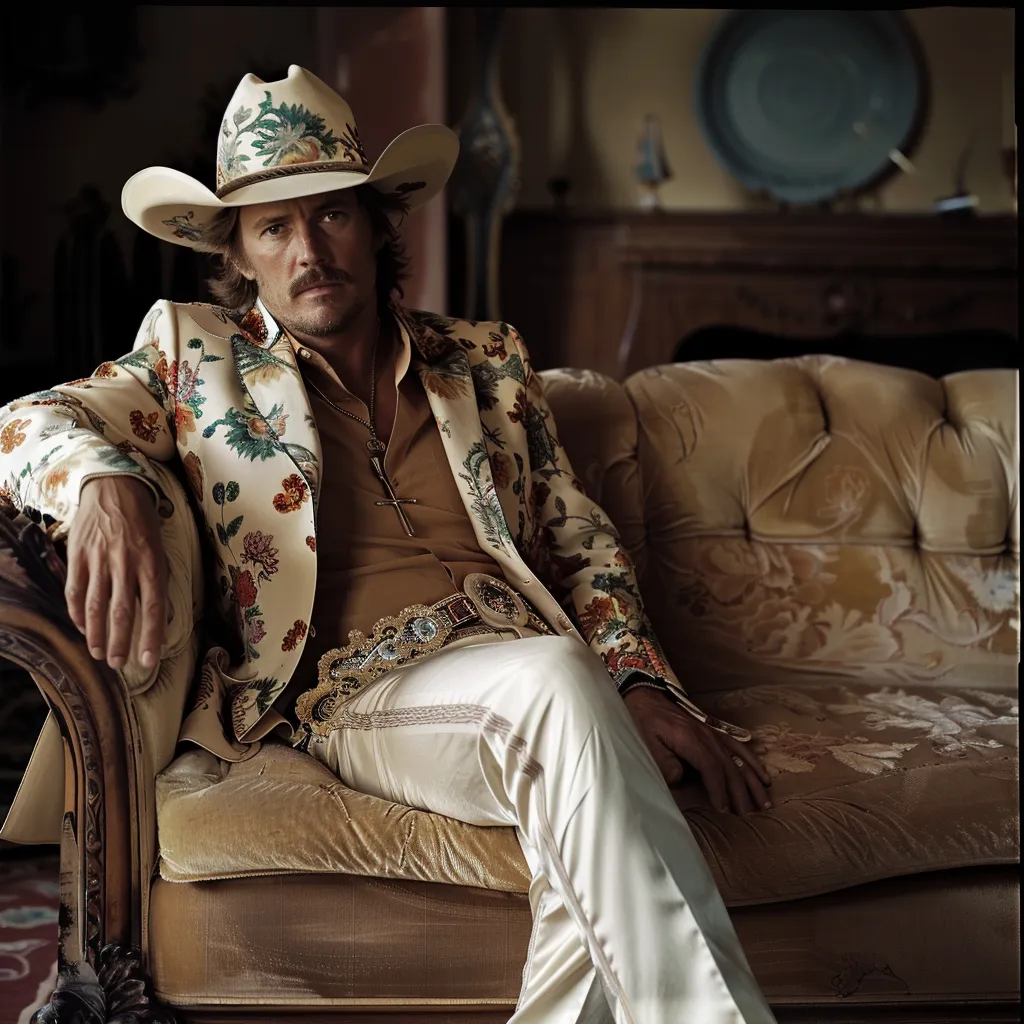
Under "Must also match", use your music's genre as a secondary interest. Also try to use other interests (5-10) that are adjacent to your music genre. Here’s an example for country music:

I’ve so far used Perplexity Deep Research to identify my audience interests.

Choose your placements 

There are many different places your ads could show across social media. In my experience, it has helped greatly to manually limit the placements to the main pages of the social apps.

These are the placements I choose for my ads, but feel free to experiment once you get used to running your ads. One thing I have noticed is that Meta has their own internal systems for scoring the quality of your ads, but that this system can be very misleading and counter-productive. At this point I basically ignore it.

Once you have selected your placements, you have successfully set up your ad set. Now it is time to go to the next step in the top left menu:

This is the step where you will set up your ad media.

Set up your ad media & accounts

In this step we will set up how the ad looks. This means the (preferably) video or (less preferably) image you will use as the media for your ad. This step also includes selecting the Facebook page and Instagram account that your ad will post from, and where someone will be directed to when clicking on the ad.

Choose the FB page (set up earlier) and Instagram account of your choosing. For the destination, insert your Hypeddit Smart Link linking to your artist playlist.

Next, scroll to ad creative, and click Set up Creative > Video

Use site links if you think it helps. I don't, since I haven’t found them to improve my performance.

Next in the Creative set up, we’ll go to the Media step. This is where you’ll select your Ad.

Before you do so, let’s talk about how to make a video ad…

Create a video for an ad

There are many options for software to edit videos. Davinci is great and free. Premiere Pro is a great paid option.

When you make your ad video, you want the video sequence settings to be set at 1080x1920 since this is the resolution we will be using as a base.

For whatever footage you choose, make it cover the middle square of the format, like below. Then take the same footage, scale it up in the background, and add a blur effect to it. This way, we’ll get the following effect below:

The benefit to having our videos formatted like this is that they will fit all kinds of posts in our ad placements while still looking good and intentional.

Furthermore, I advise adding lyrics to your video, but this is not mandatory.

For footage, you can use material free of copyright, your own AI generations, or stock footage. I use both Midjourney and Artlist, which are paid, but please do mind that there are many free options for content.

What should your ad video end up looking like?

It depends on your music. Yet there are some fundamental principles you should keep in mind.

  1. The first 3 seconds should focus on grabbing attention

  2. The middle part builds a story that lends the music emotion or excitement

  3. The end clearly shows the song and artist name


Create several videos

When you make your ad videos, create several variations. Make one of the first verse of your song, one of the first verse, and so on. Make longer and shorter versions, etc.

The reason is because we want to test what works best.

Once you have created an ad video or a set of videos, add one of them to the Ad creative Media pool (we will add more later)

Let’s go back to the Meta Ad Creative.

Our next step is to craft brief Headlines and a primary text for your ad. Use this to hype your music up.

Select “Listen now” as the call to action. This is the text people will see on the ad button which links to your hypeddit page (and then on to streaming services)

For enhancements, I only usually choose “Visual touch-ups” and “Add video effects”

Finish the Ad creative setup. Now take a deep breath. Almost there. 

Also, congratulations.

The complicated part is almost over.

Create multiple ads & ad sets

The first thing you can try, now that you have set these 3 levels up, is clicking the three dots on the bottom one, and duplicating it.

Now it will look like this:

Now you can click the three dots of the new copy to edit it. This way you can change the media (as covered on the previous page) and add one of your alternative videos. Make as many duplicates as you have variations of media for your ad.

Once you have added your individual ads, we can focus on the layer above: the set.

Here, you can do the exact same thing, duplicating the ad set. This gives you the ability to try several different target audiences. Duplicate as many ad sets as you want audiences, and, if you want, tweak the audiences in each set.

Once this is done, the ad is ready. Look it over one more time, proofreading your copy and double checking your options.

Now go to the Campaign Tab, and press “Publish”

What to do once your ad is live

Now that your ad is published, it will take some time to “learn” — i.e. to optimize for who to show this ad for. Generally speaking, the ad learns during the first 50 optimization events (clicks). Let the ad be on for at least a couple days to get a sense of the performance.

What is a good cost per click?

What’s “good” depends on your target market. I target mainly the US, Canada, and western Europe because of their high payout for streams. In these regions, anything below 30 cents per click would be considered fair, and great if around 20 cents.

Duplicate, Don’t Edit

If you are unhappy with the performance of your campaign, duplicate it, and tweak your settings in the new duplicate. Then try re-publishing with the new settings. If it still doesn’t work, try changing up your Ad Creative (videos).

Even if you are very happy with your performance and want to increase the ad spend, don’t directly edit the ad spend in the campaign. Instead, duplicate the campaign and run the duplicate in parallel. This way you won’t accidentally trigger a “re-learning” phase of your already successful campaign. I learned this the hard way.

Tracking Performance on Hypeddit

I use three layers of tracking: 1) Meta Ads stats; 2) Hypeddit stats; 3) Spotify stats.

You can go to your Hypeddit to access click through rates in different territories. Maybe your ad is performing better in Canada compared to USA. You can then use this data to optimize your next ads—focusing on the Canada, where you know people click your ad more.

Tracking Performance on Distrokid

Distrokid has basic stats available for your music. For in depth stats, I recommend…

Tracking Performance on Spotify for Artists

If you haven’t already created a Spotify for Artists account, you can do that now at https://artists.spotify.com — this will let you claim the music you’ve released, as well see in depth stats for your music.

Middle Funnel: Spotify for Artists

Spotify for artists can give you extremely insightful information on what is working in your catalogue. The most important stat for growth, in my personal experience, is not only how many streams or listeners you have, but how many streams per listener you have. You can find this stat under the “Audience” tab.

Streams per listener is most indicative of the quality of a song. I.e. if a song is good, people will listen to it several times.

Anything between 1.5-2.5 streams per listener for an artist as a whole is considered decent, whereas over 3 streams per listener is considered to be quite good. You can also see the individual stats for each song under the Music > Songs tab to see which of your songs performs the best.

How to optimize for the Spotify algos

Look through your library. Identify which of your songs have the best stats, and bump them up in order in your Artist Spotify Playlist and any other streaming playlists where your Hypeddit link is sending people.

Essentially: with the knowledge that Spotify algos are ultimately looking for high engagement numbers per streamer, we can start optimizing for exactly that.

Track your engagement with every new track to get the most out of your audience.

Now that you have all of this set up, and you are starting to see streams…

How do you know how much you’ll earn?

Earnings from Streaming

You can see your earnings on your distributor page. For me, this is Distrokid, and it’ll appear under the “Bank” tab. Let's be real, streaming services don't pay much for an individual stream. Yet, in numbers, they can bring in a more meaningful revenue.

Unfortunately, we must wait 2-3 months to receive the final payouts for our streams, due to the processing time of streaming services and distributors.

If you want to project your earnings, you can find your streaming stats, and do the math based on your audience. But since this can be a bit complicated…

Mixtape has created a tool you can use to project the earnings of your streams before they appear on Distrokid. This is included for all producer tier subscribers.

Consider becoming a subscriber to access the Revenue Projection Tool, as well as all other tools included in the Mixtape tool suite.

Bottom Funnel: Fan Page and Merch

Remember this funnel? We’ve now talked (extensively) about the two top steps. 

What about the bottom one? The Fan Page & Merch.

The fan page is the last stop for your fans. The last step of our user journey funnel. This part of the funnel represents the experiences that you provide your fans outside of streaming. As an example, this could be:

Fan page with:

  • Unreleased Demos

  • Merch

  • Other content (blog, etc)

A Spotify shop with: 

  • Merch

  • Events

This bottom part of the funnel is optional. But remember, the bottom of the funnel represents your most valuable fans. Those who love your music and are willing to spend money on your artist’s experiences. 

Two websites you can use to make and host a fan page: Wix or Squarespace. With this said, a small note:

Fan page and Merch is an aspect that I am still building out for my own artists--and subsequently it's the part I know the least about. So, for now I want to hold off on any "surefire" tricks to make this work.

In the meantime, I’ll show you how I’ve planned for my artist’s fan page to work.

Simple Three Page Site

I have used an approach of simplicity, focusing on 3 main pages.

  1. A landing page

  2. A demos page

  3. A shop page

What to put on your demo page:

My approach is to use the songs that I make for an artist that I like, but that may have some flaw that makes it unfit for publication to streaming sites. Perhaps they’re not good enough for streaming sites, but I leverage the tracks’ weaknesses seeing as their more unvarnished sound is great for a demo.

What to sell as merch:

First, there are many implications of selling merch. I’d recommend you are very clear that your music and artist is part-made by AI when selling the merch, to avoid any customer dissatisfaction or return issues. Merch can be a lot of things, but the usual suspects are:

  • T-Shirts (most popular item)

  • Hoodies & Sweatshirts

  • Hats (beanies, dad hats, snapbacks)

  • Tote bags

  • Posters (album-themed)

How to get people to visit your fan page?

Link to it in your bio using Linktree or a similar free service. Refer to your bio linktree in your posts, and use your linktree link directly in your reels on a regular basis.

Besides creating your own fan page, you can also use Spotify for Artists to manage your merch and interface directly with Spotify.

This concludes the guide. Thank you for reading and for being a supporter of this community.

© 2025 Mixtape Music. All rights reserved.

This guide and all related content are the intellectual property of Mixtape Music LLC and its creators. You are granted a personal, non-transferable license to access and use these materials for your own informational purposes only. Redistribution, resale, reproduction, or sharing of any part of these materials with third parties is strictly prohibited.

INFORMATIONAL AND EDUCATIONAL PURPOSES ONLY
The content provided in these guides is for informational and educational purposes only. Nothing herein constitutes legal, financial, or professional advice. Use of this information is at your own risk. For advice specific to your situation, consult a qualified professional.

NO PROFESSIONAL-CLIENT RELATIONSHIP
Accessing or purchasing these guides does not establish any professional-client relationship between you and Mixtape Music or its creators. No such relationship is created by your use of these materials.

NO WARRANTIES OR GUARANTEES
While every effort is made to ensure the accuracy and currency of the information, Mixtape Music and its creators make no warranties or guarantees, express or implied, regarding the completeness, accuracy, or reliability of the content. The tools, platforms, and methods described may change over time, and results may vary. No outcome or result is guaranteed.

LIMITATION OF LIABILITY
Mixtape Music and its creators shall not be liable for any direct, indirect, incidental, consequential, or special damages arising out of or in connection with the use of these guides or any content therein, including but not limited to errors, omissions, or inaccuracies, or any loss or damage incurred as a result of reliance on the information provided.

THIRD-PARTY TOOLS AND SERVICES
References to third-party tools, platforms, or services (such as Suno, Midjourney, BandLab, etc.) are for informational purposes only and do not constitute an endorsement or affiliation. Users are responsible for reviewing and complying with the terms of service and licensing agreements of any third-party products or services mentioned. Mixtape Music and its creators are not responsible for changes to third-party services or for any issues that may arise from their use.

MODIFICATION AND UPDATES
Mixtape Music and its creators reserve the right to update, modify, or discontinue any part of these guides or this legal section at any time, without prior notice. Continued access to the guides after changes constitutes acceptance of those changes.

CONTACT AND DMCA
If you believe your copyright or other rights have been infringed by content in these guides, please email lostmixtapenyc@gmail.com for prompt resolution.

Sidebar